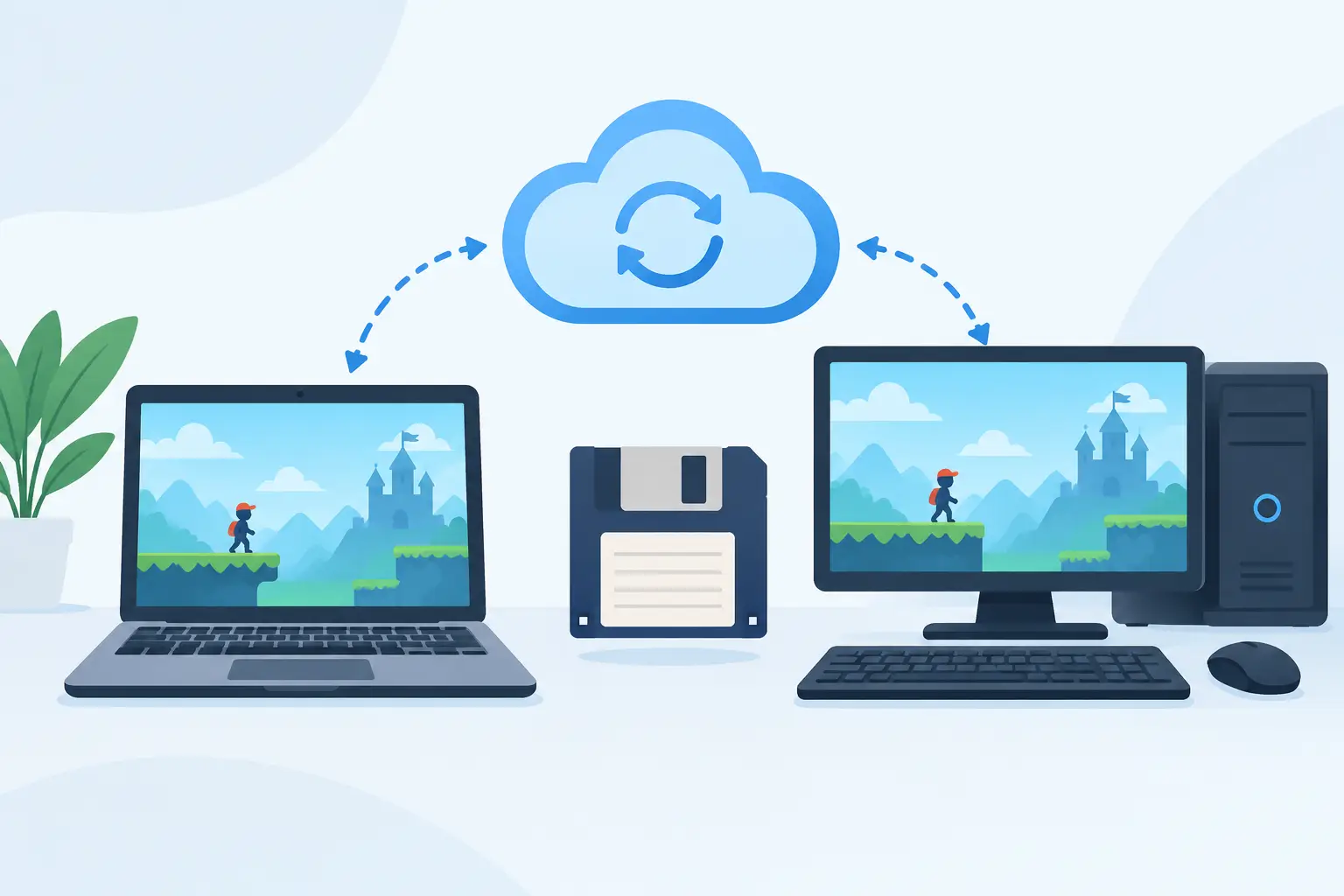
Your desktop has the good save. Your laptop has the save from three nights ago. Steam Cloud has decided it cannot possibly choose between them, so it offers a tiny dialogue box with the emotional weight of a bomb disposal manual.
To sync game saves between computers properly, you need more than a folder copied to a cloud drive whenever you remember. You need a system that knows which save is newest, preserves the old one in case the newest one is cursed, and does not turn a quick session away from home into a 45-minute scavenger hunt through AppData.
Why game saves go missing between PCs
A lot of PC games do not use the same save setup. One game puts saves beside its installation folder. Another hides them in Documents. A modded game may scatter crucial files across a world folder, a player profile and a config directory. Emulator saves add their own special flavour of chaos, because a battery save, save state and emulator settings are not always stored together.
Steam Cloud helps when a game supports it well. That is useful, but it is not a backup strategy. It may not include mods, local settings, emulator saves, unsupported games or every file a particular title needs. It can also faithfully sync a broken, deleted or overwritten save to your other machine. Brilliant efficiency. Wrong result.
The risky moments are predictable: you play offline on a laptop, switch to a desktop, reinstall Windows, change modpacks, or let a mate host the world for a night. If both computers edit the same world before they have exchanged changes, you have a conflict. The newest timestamp is not necessarily the save you want. Sometimes the right answer is yesterday's version, before someone "tidied" the storage chest with lava nearby.
The sensible way to sync game saves between computers
Start by deciding what you are actually syncing. For a single-player game, that is usually the complete save folder, not one file plucked from inside it. For a co-op title, it may include the world, player data and mod configuration. For emulators, include battery saves and save states if you use both.
Then follow a boringly reliable pattern: make a known-good backup, choose one machine as the current source of truth, sync the full folder, and only launch the game on the second machine after the transfer is complete. Boring is good. Boring means your 120-hour factory still exists tomorrow.
1. Find the real save folder
Do not assume the folder named after the game is the whole story. Check the game's settings, launcher documentation or existing local files. Load the game once, make a manual save with an obvious name, then sort likely folders by date modified. That usually exposes the culprit.
For games with mods, compare the folder contents before and after loading your modded profile. If the game relies on separate configuration or mod-list files, back those up too. A world that loads without the right mods is not necessarily a rescued world. It may simply be a very efficient way to delete half your builds.
2. Make the first copy manually and verify it
Before automating anything, copy the complete save folder from Computer A to Computer B. Rename the destination folder first rather than overwriting it immediately. Launch the game on Computer B, confirm the correct character, world and progress appear, then quit cleanly.
This one check matters. It proves you found the right files and catches games that cache saves somewhere unexpected. It also gives you a clean baseline before both machines start changing the same data.
3. Avoid live-syncing files while a game is open
Consumer cloud folders can be tempting. Put your saves in a synced directory, create a symbolic link, call it a day. For a quiet single-player title, that can work. Until the client uploads a half-written save, a game keeps a file locked, or your second computer downloads a conflict copy called something like `world (DESKTOP-7F3A's conflicted copy)`.
If you use a general cloud drive, close the game first, wait for the upload to finish, then wait for the download on the other computer before launching there. Treat it like moving a physical cartridge from one console to another. One player has it at a time.
There is another catch: some cloud services synchronise the latest file but do not make version recovery obvious or permanent. That is fine for a shopping list. Your Elden Ring character deserves better odds than a spreadsheet.
4. Keep version history, not just one current copy
A current backup protects you from a dead drive. Version history protects you from yourself, a bad mod update, a corrupted save and the moment someone saves over the wrong world at 1am.
Keep several restore points, especially before big changes: modpack upgrades, major game patches, boss attempts you are definitely going to win this time, and co-op handovers. The useful backup is not merely the newest one. It is the one from ten minutes before disaster entered the chat.
This is where purpose-built save backup tools earn their keep. Checkpoint64 watches selected save folders, checks for changes every 30 seconds, uploads only changed files and keeps each version available to restore. It supports Windows, macOS on Apple Silicon and Linux, with presets for dozens of games and emulators. The free plan is actually free; if you need more room, pay once and keep it. No subscription invoice stalking you for the rest of your natural life.
Co-op worlds need rules, not optimism
A shared world is not the same as a shared document. In games where the host owns the world file, passing it between friends without a process invites overwrites. Two people can both believe they have the latest copy. One of them is wrong, and the game cannot mediate the argument.
The low-tech answer is a handover ritual. The current host quits the game, lets the save upload, tells the next host it is ready, and the next host downloads it before launching. Nobody else opens the world during that window. It is mildly ceremonial, but so is rebuilding a base from screenshots.
For regular crews, use a system with a lock. A lock marks one person as the active host and prevents someone else from taking a competing copy. Expiring locks are useful too, because a friend going offline mid-session should not hold the kingdom hostage until the heat death of the universe. A shared logbook makes handovers less mysterious: who had the world, when it changed, and which version was restored.
Dedicated servers can solve host dependency, but they are not always the sensible answer. If four friends play twice a month, paying recurring server rent just to keep a world available is overkill. Save sharing gives casual groups a cheaper middle ground, provided they respect the one-host-at-a-time rule.
Handle conflicts before they handle you
If you see a sync conflict, stop. Do not click the newest-looking option on instinct. Copy both versions somewhere safe, inspect the modified times, and think about where each machine was used. If one save was made offline, its timestamp may tell a clearer story than a sync client's label.
Load a copy of each version separately if the game allows it. Check world progress, character inventory and recent builds. For games that bundle everything into one file, keep both until you know which one is correct. For games with separate player and world data, be careful: mixing them may produce a world that loads but puts a character in an odd state.
A versioned backup changes this from a panic event into a short admin job. Restore the last known-good point, make a fresh backup, then carry on. You lose a session, not a campaign.
A setup worth five minutes
Once your saves are syncing reliably, the routine should disappear. Play on the desktop. Let changes upload. Pick up on the laptop. Restore an older version when a mod turns your village into a crater. Hand the co-op world to a mate without sending zip files through three different chats.
Your saves are the real record of your time in a game: the strange builds, the improbable loot, the world your group kept returning to. Give them more care than a folder called `final_final_reallyfinal` on a random drive, and future-you can keep playing instead of grieving.