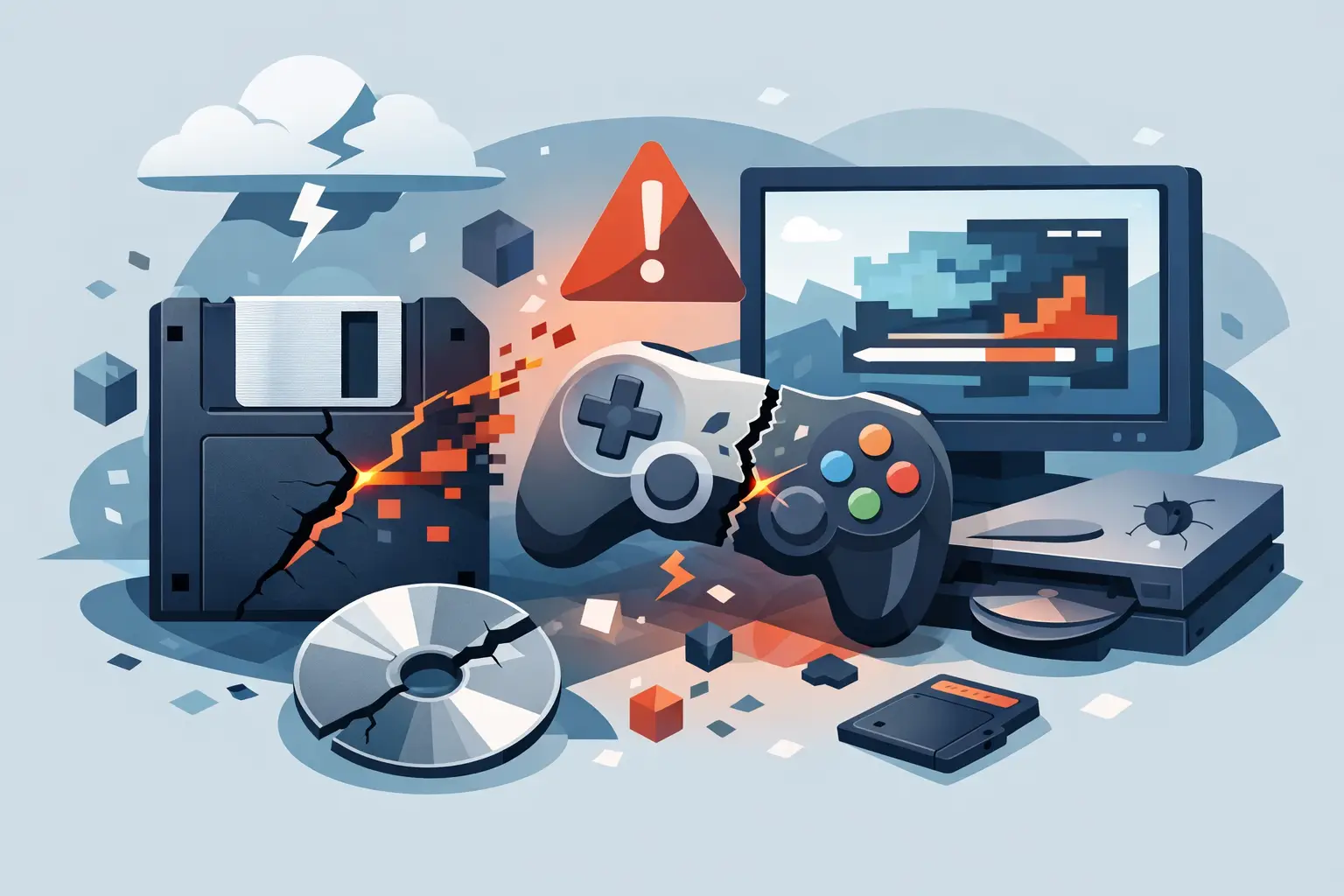
That stomach-drop moment is familiar: the game loads, the menu looks normal, and then your 140-hour world is gone, reset, or greeted by an error message written in ancient machine curse. Why do game saves corrupt? Usually because a save file was interrupted, overwritten, mismatched, or damaged while the game was trying to use it.
A save is not magic. It is a bundle of data files the game expects to be in a very particular state. If one part says your character has a diamond sword and another part never got the memo, the game may refuse to load the whole thing. Sometimes it can repair the damage. Sometimes it stares at the file and quietly decides it has never met you before.
The good news: most save corruption is predictable. Better news: most of it is preventable without turning file management into a second job.
Why do game saves corrupt in the first place?
Games rarely save one neat little file. A world might include player inventories, map chunks, quest flags, settings, screenshots, mod data, metadata and a rolling backup folder. Modern games often write these pieces in stages: create a temporary file, write the new data, replace the old file, then update an index pointing to everything.
If anything interrupts that chain, you can get a half-finished save. The game may load an older state, reject the data outright, or load just enough to reveal a world where your base has been eaten by the void. Different engines handle this differently, which is why one game survives a power cut while another folds like a deckchair.
Corruption also is not always literal file damage. A perfectly readable save can become unusable when it no longer matches the game version, mod list, DLC, platform account, or another player’s copy of the world. To you, it is still corrupted. To the game, it is an argument about reality.
The usual save-killers
1. The game or PC shuts down mid-save
This is the classic. A crash, forced shutdown, Windows update, power cut, battery death, or enthusiastic Alt+F4 can catch the game while it is writing. Autosave reduces the risk, but it also creates more moments when the game is actively touching its files.
This matters most in games with big worlds and lots of entities. A heavily automated Factorio factory, a modded Minecraft world, or a late-game Valheim base has far more data to write than a short roguelike run. The save window may be brief, but it is not zero.
Avoid killing a game through Task Manager unless it has genuinely stopped responding. If it is frozen after an autosave icon appears, give it a minute. Annoying? Yes. Less annoying than rebuilding a railway network at 1am? Also yes.
2. Cloud sync fights the game folder
Cloud sync is useful until two devices, two clients, or two versions of a file all decide they own the same save. A sync app can upload an older copy after a new local save exists, download a stale version over the top, or detect a conflict and create duplicate files that the game was never designed to understand.
This often happens when switching between a desktop and laptop, playing offline, or launching a game before sync has finished. It can also happen when a game is still writing its save while a sync tool starts copying it.
The trade-off is simple: syncing one current copy is convenient, but it is not the same thing as keeping history. If an overwrite syncs everywhere, congratulations: you now have the same disaster in multiple locations.
3. Mods change or disappear
Mods are brilliant right up until one adds a custom item, creature, biome, quest, or storage system to your world, then vanishes from the load order. The save now refers to data the game cannot interpret.
Sometimes the game removes the missing content and carries on. Sometimes it crashes. Sometimes it loads, then creates strange bugs hours later because an object was substituted, stripped, or given a new ID. Updating a mod can cause the same problem if the author changes how its data is stored.
Before changing a serious modpack, preserve the current save and note the exact game and mod versions. A mod update is not automatically dangerous, but it is not a harmless texture swap either. Treat it like renovating your house while still living in it.
4. Two people edit the same co-op world
Passing a host-owned world around in Discord sounds fine until two mates play separate copies on the same evening. One person builds a portal network; another tames wolves; both send their save back. Somebody then chooses which timeline becomes canon, and somebody else loses a weekend’s work.
Even if only one person plays at a time, manual handoffs invite mistakes: sending the wrong archive, extracting into the wrong folder, or launching an old copy by accident. A save does not know which friend has the latest version. It just knows what files it sees.
Co-op worlds need a clear handoff rule: one active editor, one known current copy, and a history of previous states. That sounds overly serious until Steve overwrites the world with a version from before your boss kill. Steve will then become a cautionary tale.
5. Storage trouble and failing hardware
Bad sectors on a hard drive, an SSD nearing failure, a disconnected external drive, or a file system error can damage saves just like they damage any other file. Save folders are small, so people often assume they are safe. Small files are still files, and a broken drive does not care that your character has legendary boots.
Watch for broader warning signs: files taking ages to open, unexplained read errors, Windows reporting drive repairs, or games crashing only when loading particular areas. Back up first, investigate second. Do not keep launching the game to see whether the problem has magically improved.
6. Antivirus, permissions, and tidy-up tools
Security software can quarantine or lock a file while a game is trying to update it. Folder permissions can block a write. Aggressive clean-up utilities can remove temporary files the game expected to finish using. These are less common causes, but they are real, especially with older games and mod managers that scatter data across unusual folders.
If a game suddenly cannot save, check its error message and available disk space before reinstalling everything. Reinstalling may replace the game files, but it will not repair a save folder that was blocked, deleted, or overwritten.
7. Game updates and mismatched versions
An update can change the save format, add new content, or make an older version unable to read a newer save. Early-access games are especially prone to this because their plumbing is still being rebuilt while players are happily constructing cathedrals out of conveyor belts.
The dangerous scenario is rolling back the game version after it has already upgraded your save. Keep a copy before major patches, betas, branch changes, or DLC installs. If you play multiplayer, make sure the host and players are running compatible versions and matching mod lists.
8. Human error, the final boss
Deleting the wrong folder. Copying the wrong one. Naming every backup “save FINAL final 2”. Starting a new game in the same slot. These are not glamorous technical failures, but they probably account for more lost progress than dramatic cosmic rays.
Manual backups work when you remember to make them, label them properly, store them somewhere safe, and never need them in a hurry. That is a lot to ask after a long session. The best backup routine is the one you do not have to remember.
How to stop a bad save becoming a permanent loss
First, make sure there is enough free storage and let games close normally after a session. Second, back up before patches, mod changes, experimental branches, or handing a co-op world to another player. Third, do not rely on a single synced folder as your only protection.
What you really want is version history: snapshots taken over time, not one mirrored copy that faithfully preserves your latest mistake. If a mod update breaks the world on Tuesday, you need Monday’s working version available in seconds, not a vague memory that you copied something to an external drive months ago.
Checkpoint64 is built for exactly this sort of save-folder nonsense. It watches supported game saves, keeps versions when files change, and lets you restore an earlier state without rummaging through mystery ZIP files. For shared worlds, its locked handoff system also makes it much harder for two people to play competing timelines. Free plan, actually free; more space is pay once, keep it forever. No subscription tax for owning a folder.
What to do when your save already looks broken
Stop writing to it. Do not keep loading, saving, and hoping the game will sort itself out, because each new save may replace useful evidence or overwrite an intact companion file.
Copy the entire save folder somewhere separate before trying fixes. Then check whether the game has its own backup files, recovery folder, or previous autosaves. If you recently changed mods or game versions, restore the matching setup before declaring the save dead. A save that fails with one mod list may load perfectly with the list that created it.
If you have file history, restore the most recent version from before the crash, update, handoff, or suspicious “I only changed one thing” moment. You may lose a few minutes. That stings, but it beats losing a world you have been carrying around since last autumn.
Your saves are not disposable by-products of playing. They are the record of every improbable boss kill, dodgy base design, co-op argument, and 2am decision that somehow worked. Keep more than one version, and the next corrupted-save message becomes a minor nuisance instead of a gaming obituary.