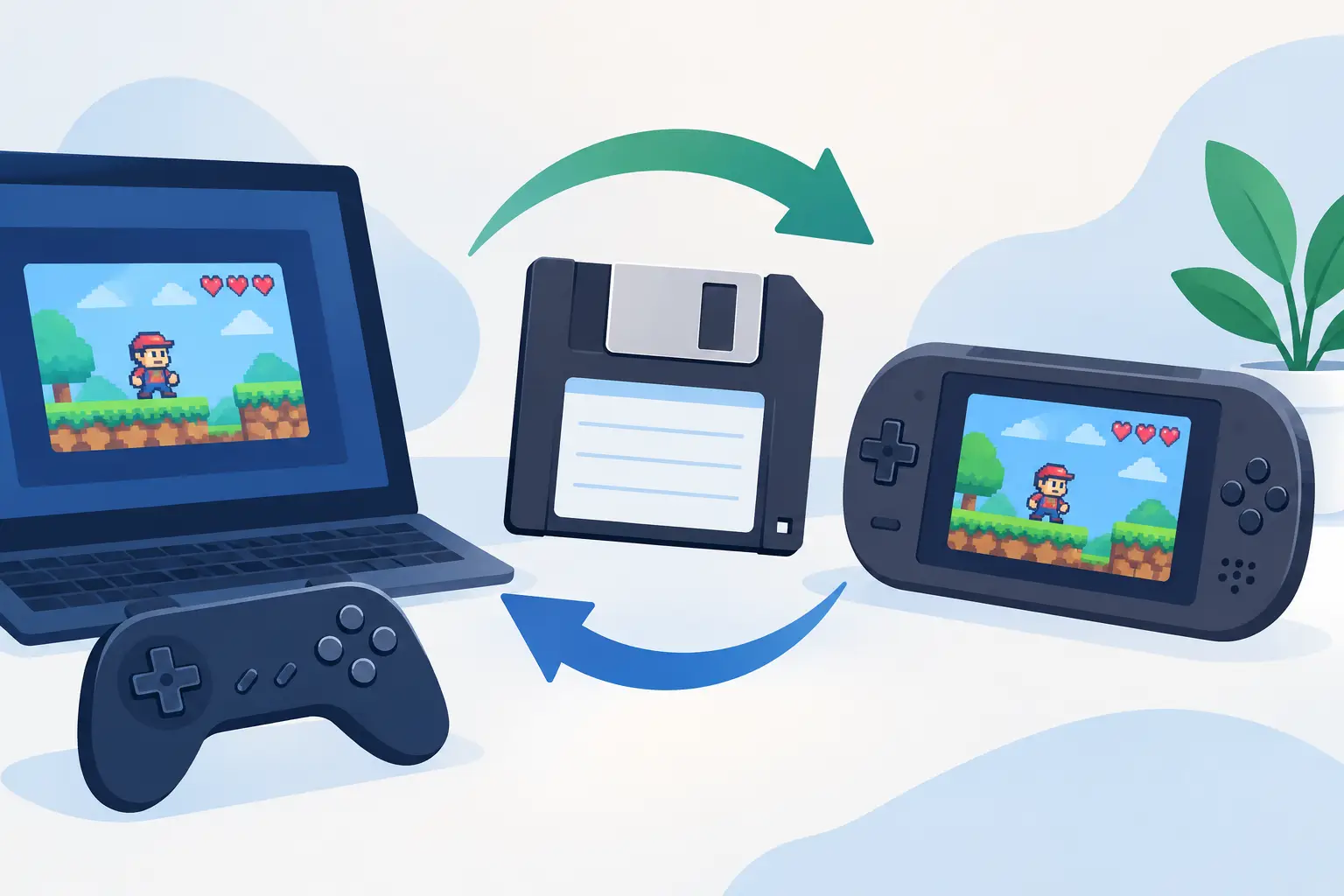
Your new handheld is charged, your ROM library is copied, and then the emulator boots to a fresh save file. Fantastic. Thirty hours of Pokémon, a near-perfect Gran Turismo licence run, or that Fire Emblem campaign you promised yourself you would finish: apparently gone.
Learning how to move emulator saves is less about copying one folder and more about knowing which files actually matter. Emulators may keep normal in-game saves, save states, memory cards, BIOS settings and artwork in entirely different places. Grab the wrong folder and you have moved the box, not the cartridge.
Know which emulator files you are moving
Start with the save type. A normal save is the one created from inside the game itself: you press Save at a Pokémon Centre, use a save point, or let an RPG write to its virtual memory card. These are usually the safest files to transfer because they behave like the original hardware's saves.
Save states are different. They freeze the entire emulator at one exact moment: RAM, processor state, timing, the lot. Brilliant for a difficult boss. Also much fussier. A state made in one emulator version may fail in a newer version, another fork, or on a different platform. Treat save states as a convenience copy, not the only copy of a 70-hour game.
You may also see files for memory cards, cheat settings, controller profiles, shaders and screenshots. They are optional for preserving progress, but useful if you want the new machine to feel identical. For disc-based consoles especially, one memory-card file can contain saves for multiple games. Copying only the game title you recognise may leave half your library behind.
How to move emulator saves safely
The boring rule that prevents the dramatic disaster: close the emulator on both devices before copying anything. Some emulators write saves when you quit, not at the instant you hit the in-game save button. Copy while it is running and you can transfer an older file, a half-written file, or a file that looks fine until it absolutely is not.
First, make a backup of the source save folder. Do not rename it, tidy it, or bravely overwrite it because you are "pretty sure". Copy it somewhere separate and leave it alone until the transferred save has loaded and survived a proper test. Storage is cheap. Replaying a lost campaign is not.
Next, find the emulator's configured save directory. Do not assume it lives beside the ROM. Some emulators store saves in their installation folder, others use a documents folder, an application support directory, or a custom path chosen years ago during a late-night configuration spree. Open the emulator settings and look for entries called Save Path, Memory Card, Battery Save, Save States, Folders or Directories.
Copy the relevant save file or folder to a temporary location, then move it to the matching configured location on the new device. Keep the filename exactly as the emulator expects. Many emulators match a save to a ROM by filename, so `Chrono Trigger.sfc` may look for `Chrono Trigger.srm`. Rename the ROM and the save stops lining up, despite both files being perfectly healthy.
Finally, launch the emulator, load the game, and check the in-game save first. If it appears, quit normally, reopen the game, and check again. That second check confirms the emulator has accepted the transferred file rather than quietly replacing it with a fresh blank one.
Move the ROM and save as a matched pair
The least painful method is to copy the ROM file and its normal save together, preserving their names. If your emulator uses per-game folders, copy the whole folder. If it uses a shared saves folder, copy the matching save file plus any associated files with the same name.
This matters when moving between a PC and a handheld. A handheld frontend may have its own directory layout, but the save still needs a matching game name and compatible format. Point the frontend at a differently named ROM and it may cheerfully create a new empty save beside it. It is not malicious. It is just doing exactly what its file rules told it to do.
Save states need extra caution
If you only have save states, copy them, but do not delete the originals. Transfer the state files into the destination emulator's state directory and try loading them with the same emulator and, ideally, the same version.
Moving from one emulator to another is where things get spicy. A Game Boy save state from one programme is not guaranteed to load in another, even when both run the same game flawlessly. The better route is to load the state on the old emulator, reach an in-game save point, create a standard battery save, then transfer that standard save. For consoles with memory cards, save in-game to the virtual card before moving it.
If a game does not offer a convenient save point, make several copies of the state file before experimenting. One copy stays untouched. Another can be tested. This is not paranoia. Emulator state formats are often tied to internal code, and compatibility can be surprisingly fragile.
Watch for regions, formats and multiple save slots
A save generally needs the same version of the game. A European ROM and a US ROM may have different internal identifiers, text layouts or save structures. Sometimes the save loads anyway. Sometimes it rejects it. Sometimes it loads and produces glorious nonsense later on. Use the same region and revision where possible.
File extensions can also vary. Game Boy and SNES emulators commonly use battery-save files such as `.sav` or `.srm`. Nintendo DS emulators may use `.dsv`. PlayStation emulators may store whole memory cards rather than individual game saves. The extension alone does not guarantee compatibility, but it gives you a clue about what you are handling.
Multiple save slots are another classic trap. Some emulators place save states in numbered slots, while others add timestamps. Copy every slot you care about, then check the emulator's save-state menu after transfer. If the slots are missing, you may have placed them in the wrong directory rather than copied bad files.
The common mistakes that eat progress
Most failed transfers come down to one of four things:
- Copying while the emulator is still open, before it writes the latest save.
- Moving save states but forgetting the normal in-game save, or vice versa.
- Changing the ROM filename and breaking the filename match.
- Overwriting a working destination save before proving the imported one loads.
There is one more nuisance worth checking: cloud sync conflicts. Services that sync desktop folders can notice an older save on one machine and helpfully restore it over the new one. Pause synchronisation while you transfer, test the save, then let it resume once you know which version is the real one.
Make future emulator moves less annoying
If you play across a desktop, laptop and handheld, manual transfers become a tiny admin job with the emotional stakes of defusing a bomb. A simple folder structure helps: keep ROMs, standard saves and save states clearly separated, and name games consistently across devices.
Better still, keep versioned copies of your save folders. One backup is protection from drive failure. Version history is protection from you, a bad mod, a cloud conflict, or the mate who loaded the wrong state and saved over the right one. Checkpoint64 can watch supported emulator save folders, keep changed files as versions, and restore an older point when a transfer goes sideways. Free plan, actually free. Pay once for more space if you need it. No subscription ambush, no "powered by AI" nonsense.
The best transfer is the one you barely remember doing. Keep the original until the new save has survived a launch, a normal quit and a relaunch. Then get back to the game, where the only thing that should delete your progress is your own extremely questionable decision to start a fresh run.