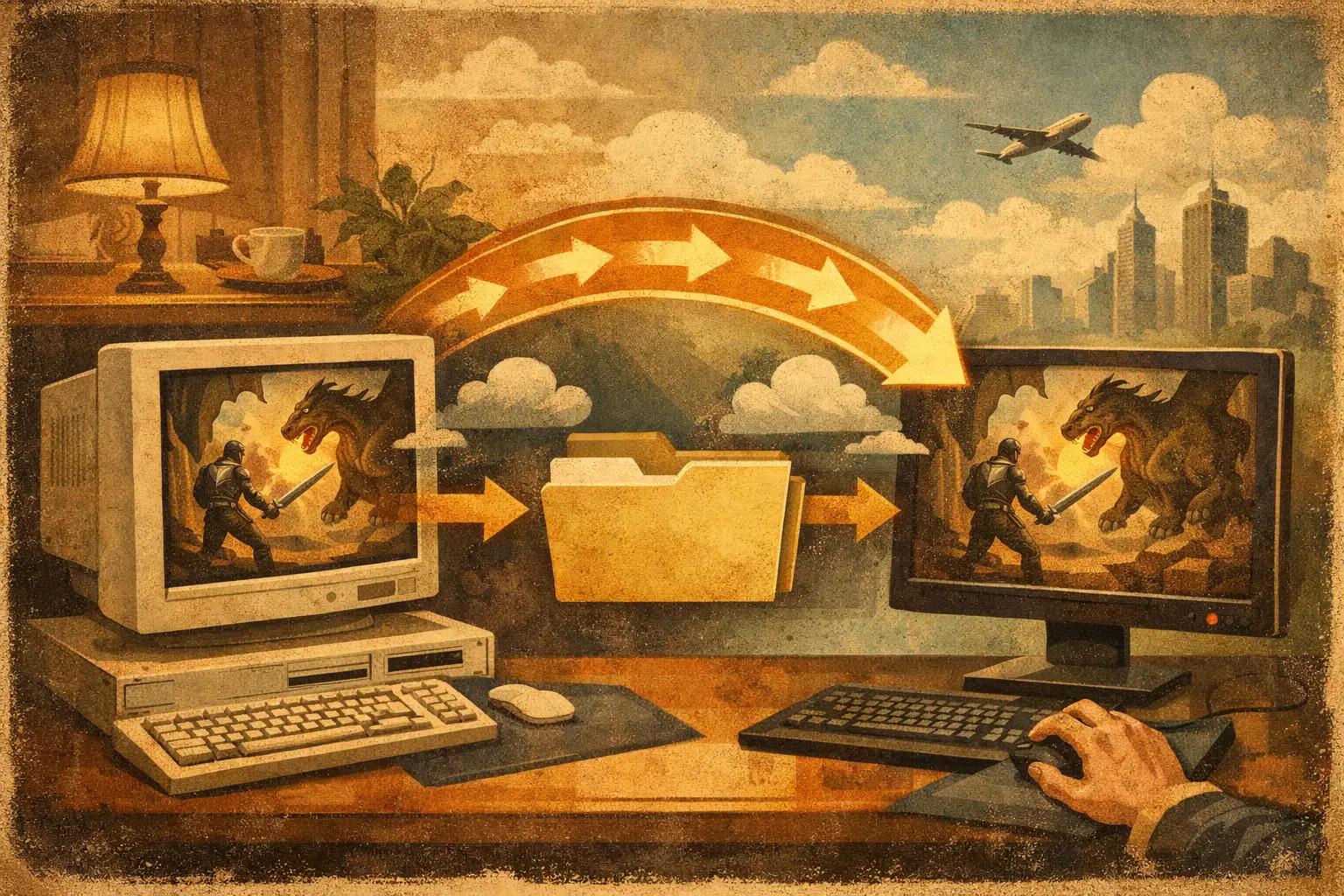
You notice it the second the game loads. Wrong character level. Missing gear. Yesterday's build instead of the one you spent four hours perfecting at 1 am. If you're trying to figure out how to sync saves across PCs, you're not being picky - you're trying to avoid the very normal rage that comes from a game pretending your progress never happened.
The annoying bit is that PC game saves were never designed with your real setup in mind. You might have a desktop at home, a laptop for travelling, a Steam Deck in the mix, and a co-op world that somehow lives on one mate's machine like a cursed family heirloom. Some games support cloud sync well. Some do it badly. Some don't do it at all. And modded games add their own special flavour of chaos.
How to sync saves across PCs the sensible way
There are basically three ways to handle save sync on PC. The first is built-in platform cloud sync, like what you get through Steam or another launcher. The second is manual syncing through cloud storage folders, symbolic links, USB sticks, and crossed fingers. The third is using a save-specific backup and sync tool that watches the actual save folders and keeps versions of them.
The right option depends on what you play and how much pain you're willing to tolerate.
If you only play newer single-player games with proper cloud support, platform sync might be enough. If you play older titles, emulators, heavily modded games, or anything co-op with one host file, built-in sync often falls over fast. That's where people end up crawling through AppData at midnight, muttering at folder names that look like they were generated by a keyboard headbutt.
Why syncing game saves is harder than it should be
Game saves don't live in one tidy place. That's the first problem. One game stores saves in Documents, another hides them in AppData, another shoves them into the install directory, and an emulator might spread files across multiple folders. Even when two PCs have the same game installed, the save path can differ because of operating system quirks, user accounts, mods, or launcher settings.
Then there's timing. Cloud sync only works cleanly when the system knows which file is the newest and when it should upload or download it. If you close a laptop before the upload finishes, launch the same game elsewhere, or lose internet for a bit, you can get conflicts. Best case, the launcher asks which file to keep. Worst case, it picks for you and bins the progress you actually wanted.
Modded saves are even touchier. A save might technically sync, but if the other PC has a different mod list, game version, or load order, you've just transported a ticking bomb. The save isn't really portable unless the environment around it matches too.
Option 1: Use launcher cloud sync if the game actually supports it
This is the easy answer, and sometimes the correct one. Steam Cloud, Xbox cloud saves and similar systems can work perfectly fine for games that support them properly. If your game always updates cleanly between your desktop and laptop, lovely. Take the win.
But don't assume support means good support. Some games only sync part of the save data. Some sync settings but not progression. Others behave until you go offline, use mods, or swap between operating systems. A few are just plain unreliable.
If you're relying on launcher sync, test it before you trust it. Make a clear change in-game, save, exit properly, and wait a minute. Then open the same game on the second PC and confirm the progress is there. If you have to wonder whether it worked, that's already a warning sign.
Option 2: Manually sync save folders if you enjoy admin jobs
Yes, you can brute-force this with OneDrive, Dropbox, Syncthing, symbolic links, or old-school copy and paste. People do. People also manually sort screws into jam jars, and that's fine if that's your hobby.
The DIY route usually means finding the save folder, moving it into a synced location, and linking the original path back to it. On paper, this gives you one master save folder that multiple PCs can access. In practice, it can be fiddly. Paths break. Permissions get weird. Some games really don't like saves being moved. If two machines edit the same file before the sync catches up, you can end up with duplicates, conflicts, or a save that's quietly mangled.
It can still be worth doing for one or two games if you're comfortable with file systems and happy to maintain the setup. It becomes much less charming when your library gets bigger, your mod list gets messier, or a shared co-op world enters the picture.
How to sync saves across PCs without corrupting them
This is the part most guides skip, because "just use the cloud" sounds simpler than the truth.
If you want reliable sync, you need three things. First, the correct save folder has to be monitored, not just whatever folder looks close enough. Second, changes need to upload after the game closes, not while the save is still being written. Third, you need version history, because sometimes the newest file is the broken one.
That last point matters more than people think. Sync alone is not protection. If a mod update wrecks your world, and your sync system instantly pushes that wrecked save to every PC, congrats - now it's broken everywhere. Version history is what turns a sync setup from convenient into actually useful.
This is where a dedicated save manager earns its keep. Instead of pretending every game behaves the same, it watches the save locations that matter, backs up changes automatically, and lets you roll back to a previous state if a session goes sideways. For players juggling more than one machine, that's the difference between "my progress follows me" and "my progress follows me until it explodes".
The co-op problem no normal cloud folder fixes properly
Single-player saves are one thing. Shared worlds are another beast entirely.
Games like Valheim, Stardew Valley, Factorio or Satisfactory often tie a world to one host machine. So the group's entire civilisation, factory or potato empire lives in one person's save folder. If that person is away, has the wrong file version, or accidentally overwrites the world after someone else played, everyone gets a lovely group argument.
Regular cloud sync isn't great here because shared access creates race conditions. Two people can pull the same save, both make changes, and whoever syncs last wins. That's not collaboration. That's file combat.
A better setup uses controlled handoff. One person checks out the world, plays, then syncs it back before someone else takes over. Some save tools handle this with lock-based sharing so there is always one clear active editor instead of a free-for-all. That's far safer than passing folders around in Discord like forbidden contraband.
What a good save sync setup looks like
The best setup is boring. That's the goal.
You install the game on both PCs. The save tool detects or lets you choose the right save folder. It watches for changes, uploads them after a session, and keeps old versions in case you need a rollback. When you open the game on another machine, the latest healthy save is already there. No scavenger hunt through hidden folders. No wondering which file is the real one. No spreadsheet called FINAL_SAVE_V2_REAL.
For modded games, the smart move is to treat save sync and mod sync as related but separate jobs. Sync the save, yes, but also keep your mod environment consistent across machines. Same game version, same mods, same load order. Otherwise you're carrying a save into a different reality and acting surprised when it screams.
If you're using a tool like Checkpoint64, this is exactly the kind of mess it is built for - automatic save backups, version history, restore points, and proper sharing for co-op worlds, without asking you to rent a server forever just to keep a casual world alive.
When not to sync automatically
Automatic syncing is great until it isn't. There are cases where you should slow down a bit.
If you're actively testing mods, experimenting with save editing, or running different game versions on different machines, instant sync can spread mistakes faster. In those cases, pause the sync, make your changes, test properly, then resume once you know the save is stable.
The same goes for games with anti-cheat or weird launcher behaviour. Most single-player and co-op titles are fine, but if a game is fussy about external file changes, you want to confirm that the save path and sync method play nicely before making it your default workflow.
The real answer
If you're wondering how to sync saves across PCs, the answer is not one magic setting. It's choosing a method that matches the kind of games you actually play.
Launcher cloud sync is fine when it works. Manual folder hacks work if you don't mind maintaining them. But if your saves matter, your library is mixed, or your co-op world has become a hostage situation, you want something built specifically for saves, with backups and version history baked in.
Because the best save system is the one you stop thinking about entirely - right up until the day it saves your weekend.