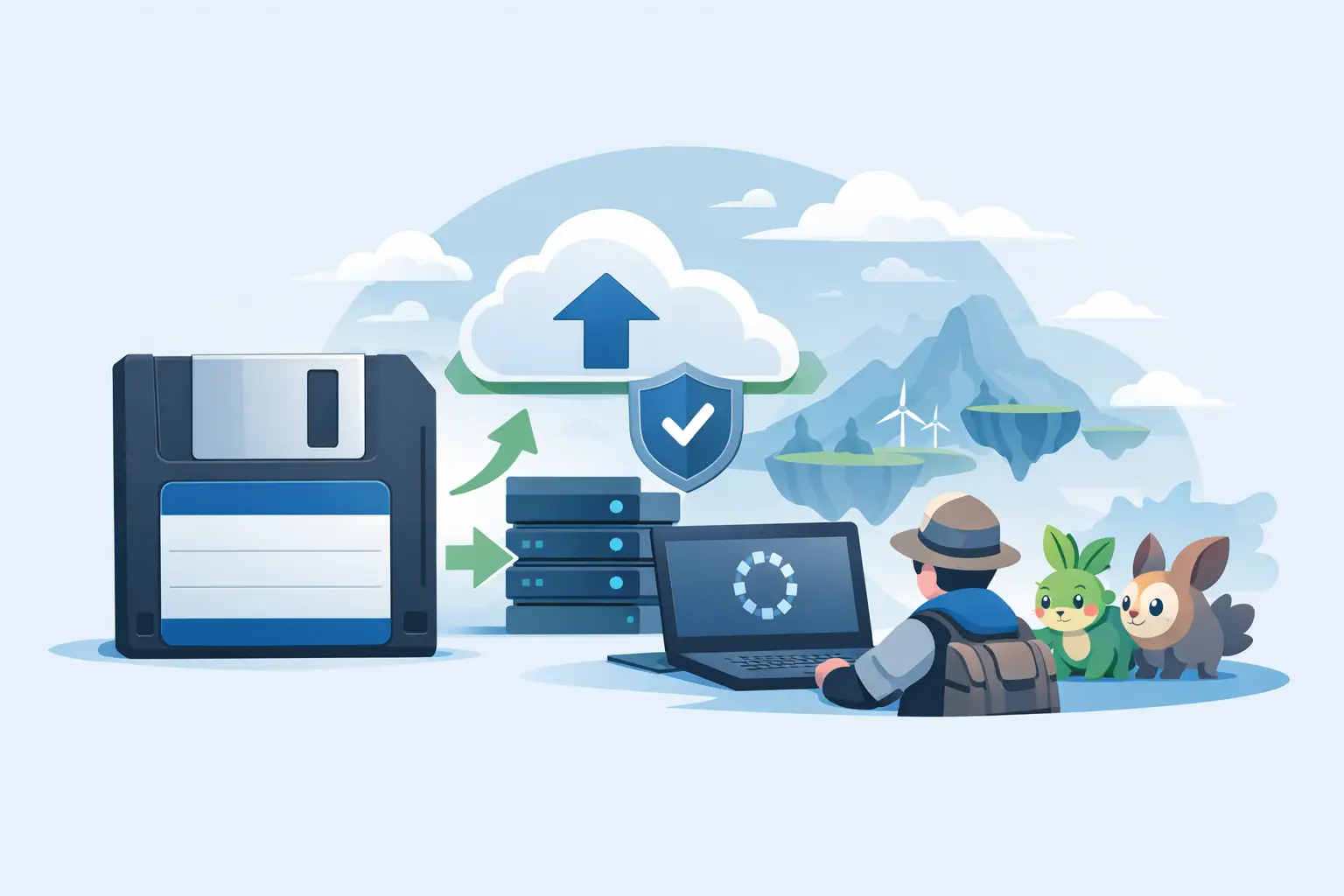
Your Palworld multiplayer save backup is not a boring admin job. It is the thing standing between your crew and the sentence nobody wants to read in Discord: “I think I loaded the wrong world.” One bad rollback, a corrupted mod update, or a host PC deciding today is its villain arc can erase weeks of bases, breeding projects and deeply questionable Pals.
Palworld makes co-op feel casual right up until the save becomes the whole group’s problem. The host has the world. The host has the files. The host also has a life, a dodgy Windows update, and perhaps a habit of clicking through warning boxes at warp speed. That is not a system. That is a single point of failure wearing headphones.
Why Palworld multiplayer saves go sideways
In a normal host-based co-op world, the save lives with the person running the session. If that player cannot launch the game, nobody else can simply pick up the world and carry on. If they overwrite a newer save with an older copy, the rest of the group gets to discover time travel the bad way.
Palworld saves can also be more fragile than a single neat file. A world is usually stored as a small family of related files inside its own save folder. Player data, world data and metadata need to agree with each other. Copying only one file because it looked important is how a five-minute fix becomes an evening of forum archaeology.
Mods add another layer of chaos. A mod can change how a world behaves, and removing or updating one mid-campaign can produce anything from missing items to a world that refuses to load. A backup taken before the experiment gives you a real exit. A copy made after everything catches fire is just a photograph of the fire.
Dedicated servers reduce the host-dependency problem, but they do not make backups optional. They move the save to a server machine, VPS or rented host. That can be worth it for a large crew that plays at odd hours. For three mates who play twice a week, it can also mean paying a monthly bill for a server mostly occupied by sleeping Lamballs.
Build a Palworld multiplayer save backup that actually helps
The best backup is automatic, versioned and stored somewhere other than the drive currently having a bad day. “I occasionally copy the folder to my desktop” is not a backup plan. It is a future excuse.
Start by finding the active world save rather than guessing. On a Steam install, Palworld’s local save data is typically under the game’s `Saved\SaveGames` folder in your user AppData directory. Inside, you will see folders with long IDs, then individual world folders. The exact folder you need is the one that changes when your group plays.
Before touching anything, make a clean manual copy while the game and any server are fully shut down. Name it with a date and a useful reason, such as `2026-08-25-before-mod-update`. Do not call every backup `backup_final_final2`. Your future self has suffered enough.
Then set up automation that watches the actual save folder. A decent system should spot changed files frequently, upload only what changed, and retain older versions rather than replacing yesterday’s copy with today’s disaster. Thirty-second checks are plenty for most co-op sessions. You do not need a data centre. You need a time machine with sensible labels.
There are four rules worth following:
- Keep backups off the host machine, not merely in another folder on the same SSD.
- Keep version history, because corruption and accidental overwrites are often noticed hours later.
- Back up before mod changes, game patches and major base rebuilds.
- Restore only while every player and server process is closed.
That last point matters. Restoring files while Palworld is running can leave the game holding an older version in memory, then writing it back when it closes. Congratulations, you have overwritten your rescue operation.
The co-op hand-off problem is bigger than backup
A backup protects progress. It does not automatically solve who is allowed to run the world next.
The usual DIY hand-off goes like this: one person zips the save, posts it in chat, somebody downloads it, puts it in the right folder, hosts the session, then eventually sends it back. It works until two people host different copies, someone forgets which zip is newest, or the folder gets merged rather than replaced. At that point, every message begins with “wait, which version are we on?”
Treat the save like a physical cartridge. One person takes it, plays, then puts it back on the shelf. Nobody should have two people writing to the same cartridge at once.
This is where shared save tools earn their keep. Checkpoint64 can watch a Palworld save, retain every version in cloud storage and let a group hand the world between hosts using a server-enforced lock. One player checks out the world, plays it, and checks it back in. The shared logbook makes it obvious who had it last and when. No subscription, ever: the free plan is actually free, and more storage or crew features are a pay-once option rather than rent for your own files.
A lock is not just bureaucracy with a gamer skin. It prevents the classic split-brain save: two hosts each make progress in their own copy, then one copy silently wins. You cannot merge two parallel Palworld worlds like a shared spreadsheet. Pick a single source of truth before the chaos starts.
How to restore a bad Palworld session safely
The moment something looks wrong, stop playing. Do not keep saving in the hope that it will sort itself out. Every extra autosave can make the good recovery point harder to identify.
First, get everyone out of the world and close Palworld. If you run a dedicated server, stop that too. Make a copy of the broken current save before restoring anything. Yes, preserve the disaster. You may later realise the issue was a missing mod or a single misplaced file, and that copy could still be useful.
Next, choose a backup from before the problem began. If a new mod caused missing Pals, restore the version from immediately before the mod was installed, then make sure the game is using the same mod setup it had then. If a player loaded an old world by mistake, choose the last known-good version after the previous session.
Replace the complete world folder, not just the file that looks guilty. Launch the host alone first and check the map, player progress, base structures and Pal boxes. Once it looks right, tell the group exactly what happened: “Restored the 22:14 version. Anything after that point is gone.” It is not fun, but clear beats vague when people are trying to work out why their rocket launcher has vanished.
What cloud sync can and cannot do
Generic cloud folders are better than nothing, but they have a nasty habit of syncing an overwrite just as efficiently as they sync a good save. If a bad file replaces a good file and the service keeps limited version history, you are still gambling on timing.
They can also create conflicts when two machines touch the same world folder. A duplicate file with “conflicted copy” in its name may be charming in a Word document. In a multiplayer game save, it is a warning siren.
Use a proper sync folder only if one machine is the designated host and you understand its version-history rules. For rotating hosts, use a workflow with explicit ownership, full-folder transfer and restore points. It is a little more deliberate, which is precisely why it does not explode at 1 am.
Make the first backup before the first disaster
Set up the folder, take an initial clean snapshot and agree who owns the world during each session. Put the hand-off rule in your group chat once. It takes less time than rebuilding a breeding farm after somebody’s laptop falls over.
Your Pals may be expendable cannon fodder. Your 80-hour co-op world is not. Give it a shelf, a history and one clear pair of hands at a time.